FTP
FileZilla (free)
1. Install FileZilla
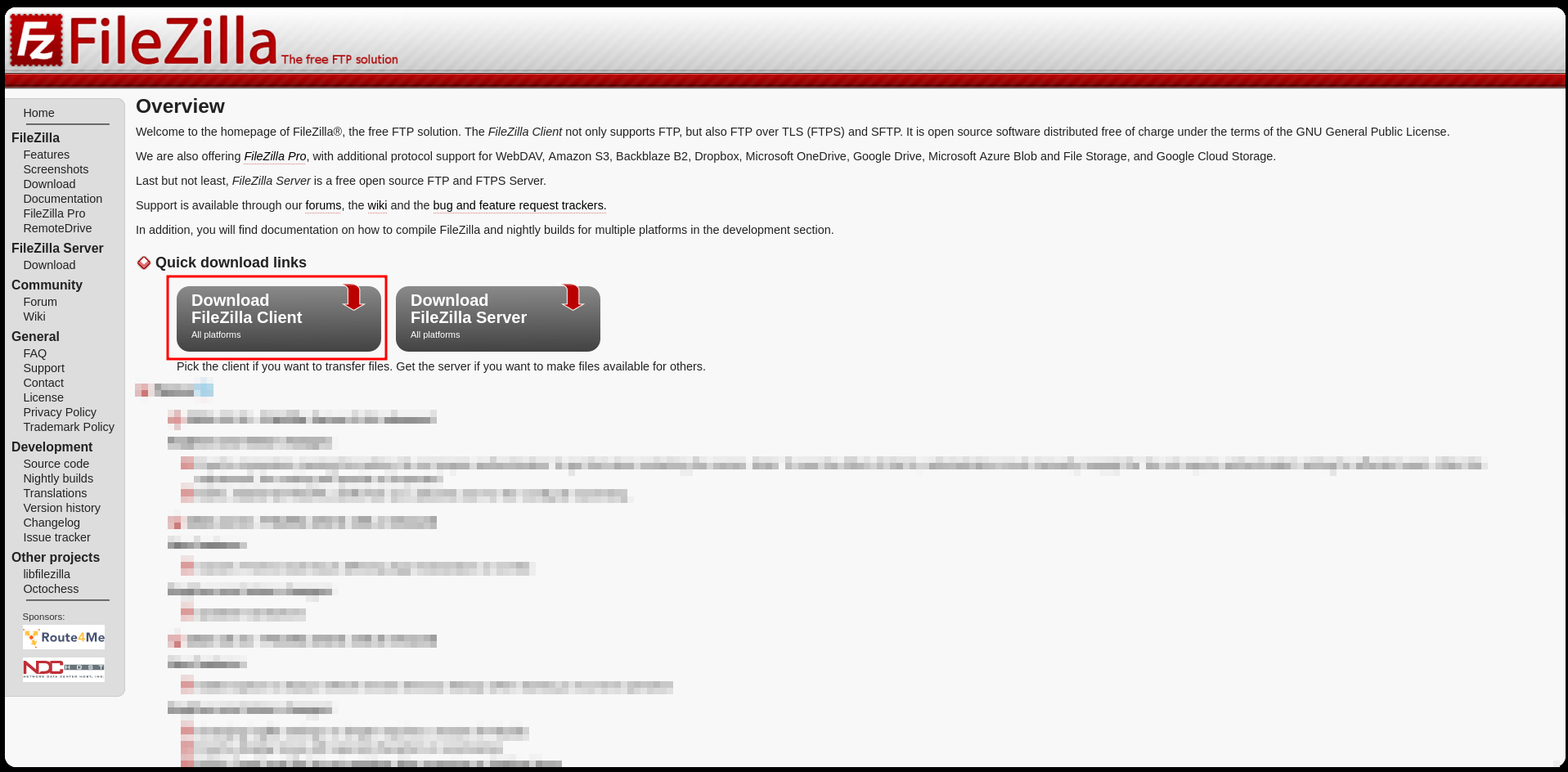
- Download FileZilla Client from the official website.
- Follow the installation instructions for your operating system.
2. Get Your VPS FTP Details
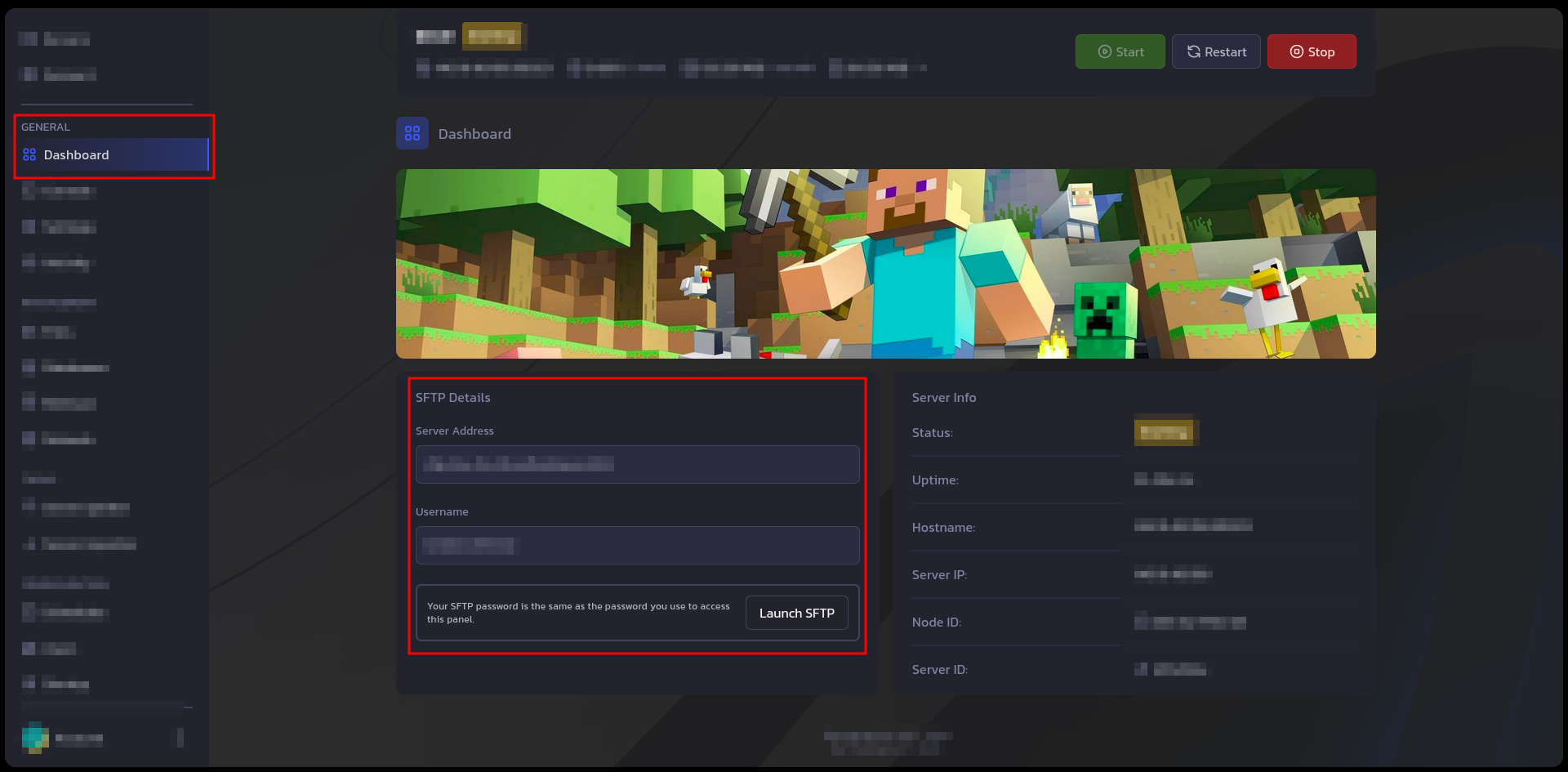
- Gather the following information from your VPS provider:
- Host: Your server's IP address or hostname.
- Username: Your VPS login username.
- Password: Your VPS login password.
- Port: Typically 21 for FTP or 22 for SFTP (secure FTP).
3. Open FileZilla
-
Launch FileZilla.
-
Enter the following details at the top:
- Host: Your VPS IP/hostname.
- Username: Your login username.
- Password: Your login password.
- Port: Enter 22 for SFTP (recommended for security).
-
Click Quickconnect.
4. Navigate to Your VPS Directory
- Once connected:
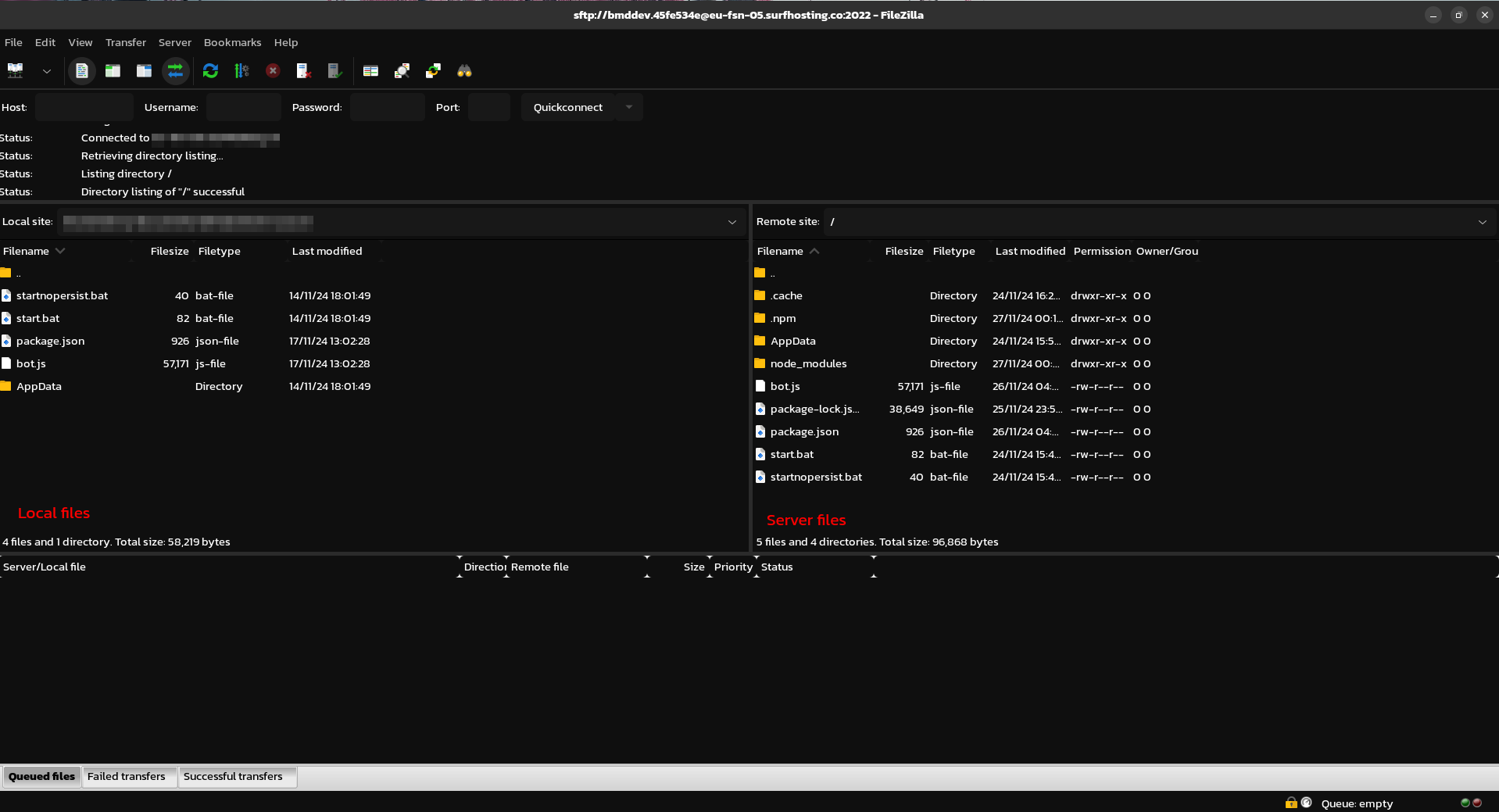
- The left panel shows your local files.
- The right panel shows files on your VPS.
- Navigate to the appropriate directory on your VPS for hosting your bot (e.g.,
/home/yourusername/discord-bot).
Image Idea: Screenshot showing the local and remote panels in FileZilla with an example directory.
5. Upload Your Bot Files
- On the left panel, navigate to the folder containing your Discord bot files.
- Drag and drop the files or folders from the left panel (local) to the right panel (VPS).
- Wait for the upload to complete. The status bar at the bottom of FileZilla will show progress.
Image not yet added: Screenshot of a file transfer in progress, highlighting the drag-and-drop functionality and status bar.
6. Set Permissions (Optional)
- Right-click uploaded files on the VPS (in the right panel) and choose File Permissions.
- Ensure the correct permissions are set for your bot files (e.g.,
755for executable scripts).
Image not yet added: Dialog box screenshot for file permission settings in FileZilla.
7. Test Your Bot
- SSH into your VPS (if needed) to navigate to the bot directory.
- Run your bot using the appropriate command, e.g.,
node bot.jsorpython bot.py.
Image not yet added: Terminal screenshot showing an example command to start the bot.
8. Troubleshooting Tips
- Connection Issues: Verify your credentials and ensure the VPS's firewall allows FTP or SFTP access.
- File Not Found: Double-check that you uploaded files to the correct directory.
WinSCP (free)
No guide yet... maybe write one for us?
Cyberduck (free)
No guide yet... maybe write one for us?
Transmit (Paid)
No guide yet... maybe write one for us?
CuteFTP (Paid)
No guide yet... maybe write one for us?
CloudMounter (Paid)
No guide yet... maybe write one for us?
WS_FTP Professional (Paid)
No guide yet... maybe write one for us?
Commander One PRO (Paid)
No guide yet... maybe write one for us?
Free FTP (free)
No guide yet... maybe write one for us?
ForkLift (Paid)
No guide yet... maybe write one for us?